Web UI (common pages)
OWTS provides a small on-device web UI that is shared between aircraft and winch mode.
| Mode | Home (/) |
Extra navigation |
|---|---|---|
| Winch | Winch monitor (live RF telemetry) | Timeline icon → last launches |
| Aircraft | Aircraft settings (profile / speeds) | Gauge icon → Live IAS |
A hardware fault found at startup stays in a banner at the top of every page until you dismiss that message. It can come back after the next boot.
HTTPS (self-signed certificate)
Browser warning (self-signed certificate)
The UI is served over HTTPS.
The device uses a self-signed certificate, so your browser will show a security warning on first use. This is expected.
- Proceed to the page and (if prompted) store a permanent exception for the device.
- Use this only on a local / trusted network (SoftAP or club LAN).
About (device info + firmware update)

The About page shows device identity and firmware information:
- Serial: device identifier (derived from MAC)
- Mode: current device role (
aircraft/winch) - Firmware: firmware version string
In aircraft mode, it additionally shows the configured registration/type.
Firmware update (OTA)
Below the identity card, Firmware update lets you install a new app image and web UI (SPIFFS) over Wi‑Fi:
- Take a matching pair from a firmware release package (or CI artifact):
OWTS_<version>.binandspiffs_<version>.bin(same<version>). - Drag both files into the drop zone (or click to browse).
- Optionally enable Force update if you need to install the same, older, or debug firmware (otherwise the device rejects non‑newer versions).
- Confirm Update firmware. Keep power and Wi‑Fi connected until the device reboots and the page reloads.
If an API password is configured, the update requires that password (same as other configuration changes). Major changes to the flash partition layout still need a full USB flash — see the flash notes in the developer docs.
Config (mode + network + radio + security)
Winch vs aircraft mode have slightly different config sections (winch includes the WS2812 LED strip settings).
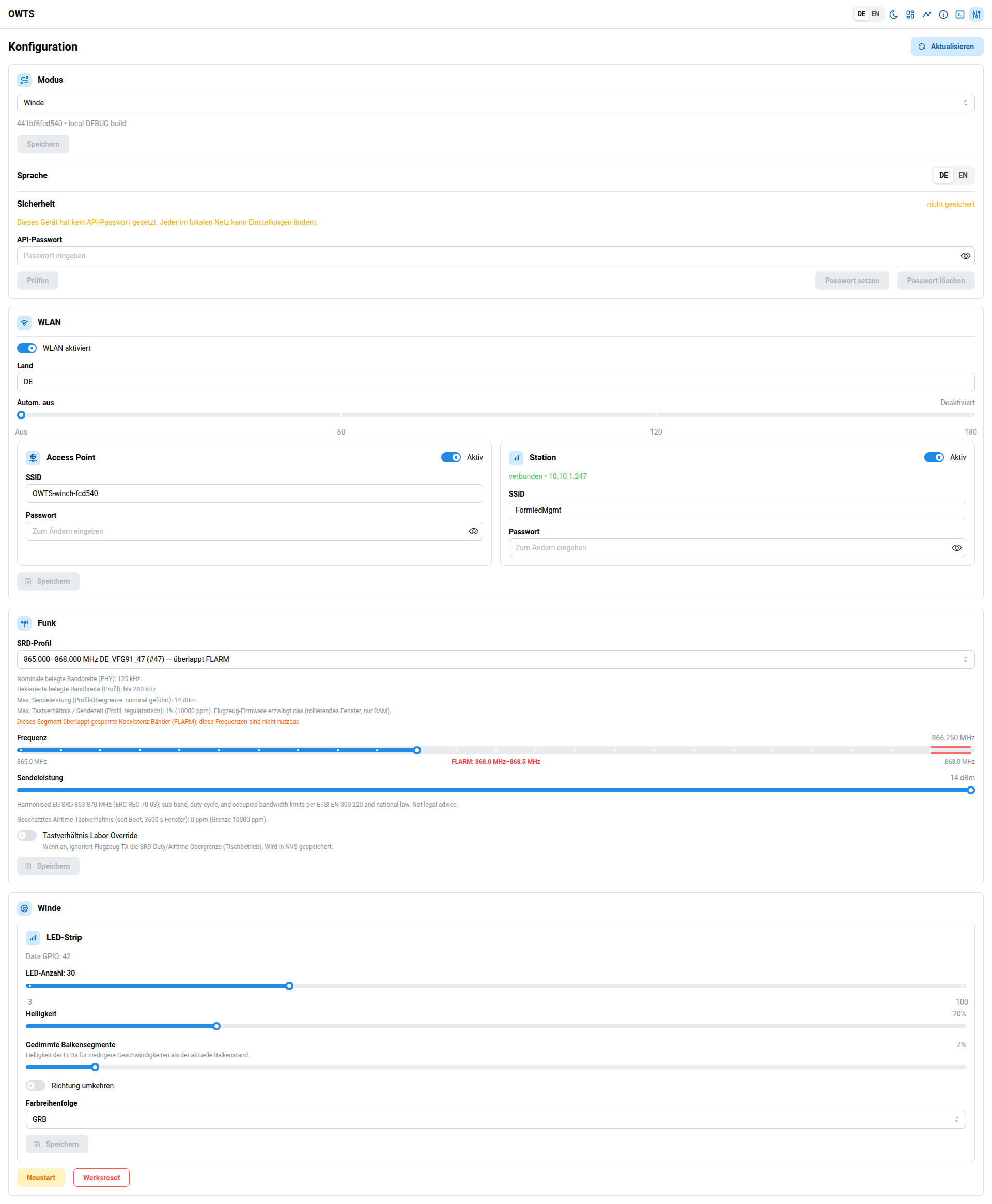
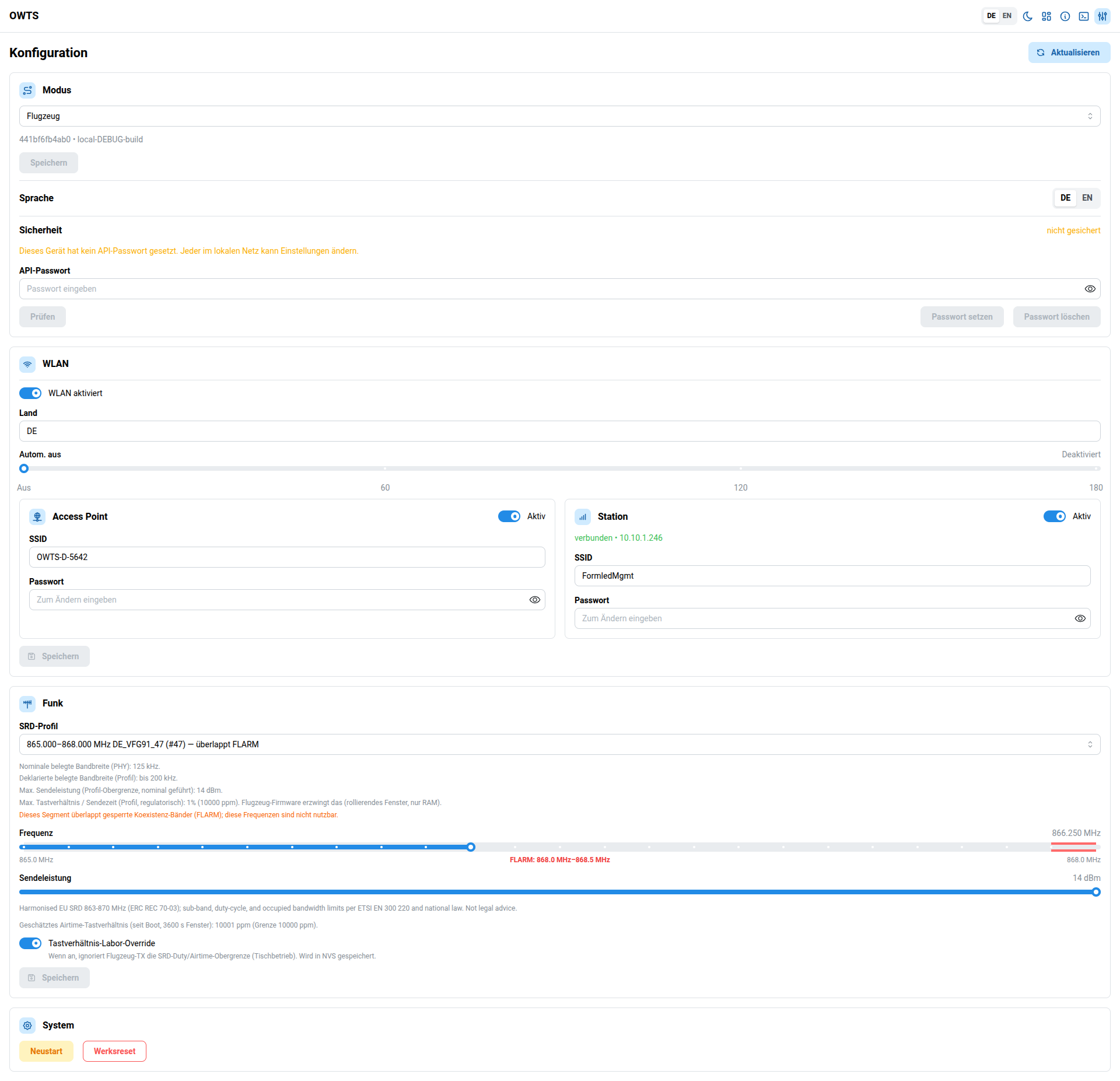
The Config page controls device-wide settings:
- Security (API password):
- Read-only pages work without a password.
- Configuration changes require a password only after you set one.
- The password is stored in your browser; on a second phone/tablet you must validate again.
- Mode: switch between
aircraftandwinch(may reboot) - WiFi: AP / station settings and status
- Radio: SRD profile, frequency, TX power, live duty readout, and optional lab duty override (only in builds that include radio settings; aircraft transmits, winch receives — duty accounting applies to the aircraft role)
- System: reboot / factory reset
Radio (SRD profile, frequency + TX power)
If the firmware build includes SX1262 support, the Config page exposes:
- SRD profile: pick the regulatory row (frequency segment, max power, duty cap, modem compatibility). The UI warns when a segment overlaps the FLARM coexistence band so you stay on usable channels.
- Frequency: shown in MHz (the API uses Hz internally)
- TX power: in dBm
- Duty / airtime (readout): 3600 s sliding window (RAM since boot), shown alongside the active profile cap. In aircraft mode, enable Lab duty override only for bench use — it disables enforcement against the profile cap.
To avoid interference with FLARM in Europe, the firmware enforces a blocked frequency window:
- 868.0–868.5 MHz is not selectable and will be rejected by the API
The UI visualizes this block on the slider and automatically selects the nearest allowed channel if you drag into the blocked region.
API password (recommended)
OWTS can protect configuration changes with an API password.
- Read-only pages (monitoring/telemetry/logs) keep working without a password.
- Changes (Save buttons, reboot, factory reset, WiFi changes, firmware update on About, etc.) require a password only after you configure one.
Set or change the password
- Open the UI.
- Go to Config → Security.
- Enter a password and press Set/Update password.
Using a second phone/tablet
The password is stored in your browser (local storage), not on the device. If you open OWTS from another device, you will need to enter the password again under Config → Security and press Validate.
Network name changes (registration / mode)
The device uses its current “network label” for the SoftAP SSID and for the mDNS
hostname (<name>.local) when connected to a WiFi station network.
- Default names:
- aircraft mode (no registration set):
OWTS-aircraft-<id> - winch mode:
OWTS-winch-<id>
- aircraft mode (no registration set):
- In aircraft mode, if a registration is set (e.g.
D-1234), the name becomesOWTS-D-1234.
Examples (same <id> as in Setup): if the device serial ends
with fb4ab0, then:
- Winch mode: SSID
OWTS-winch-fb4ab0, mDNShttps://owts-winch-fb4ab0.local/ - Aircraft (no registration): SSID
OWTS-aircraft-fb4ab0, mDNShttps://owts-aircraft-fb4ab0.local/ - Aircraft (registration
D-1234): SSIDOWTS-D-1234, mDNShttps://owts-d-1234.local/
Changing identity fields (like aircraft registration) can cause the device to reboot shortly after saving so the WiFi identity updates cleanly (the UI will reload).
Logs (device log viewer)
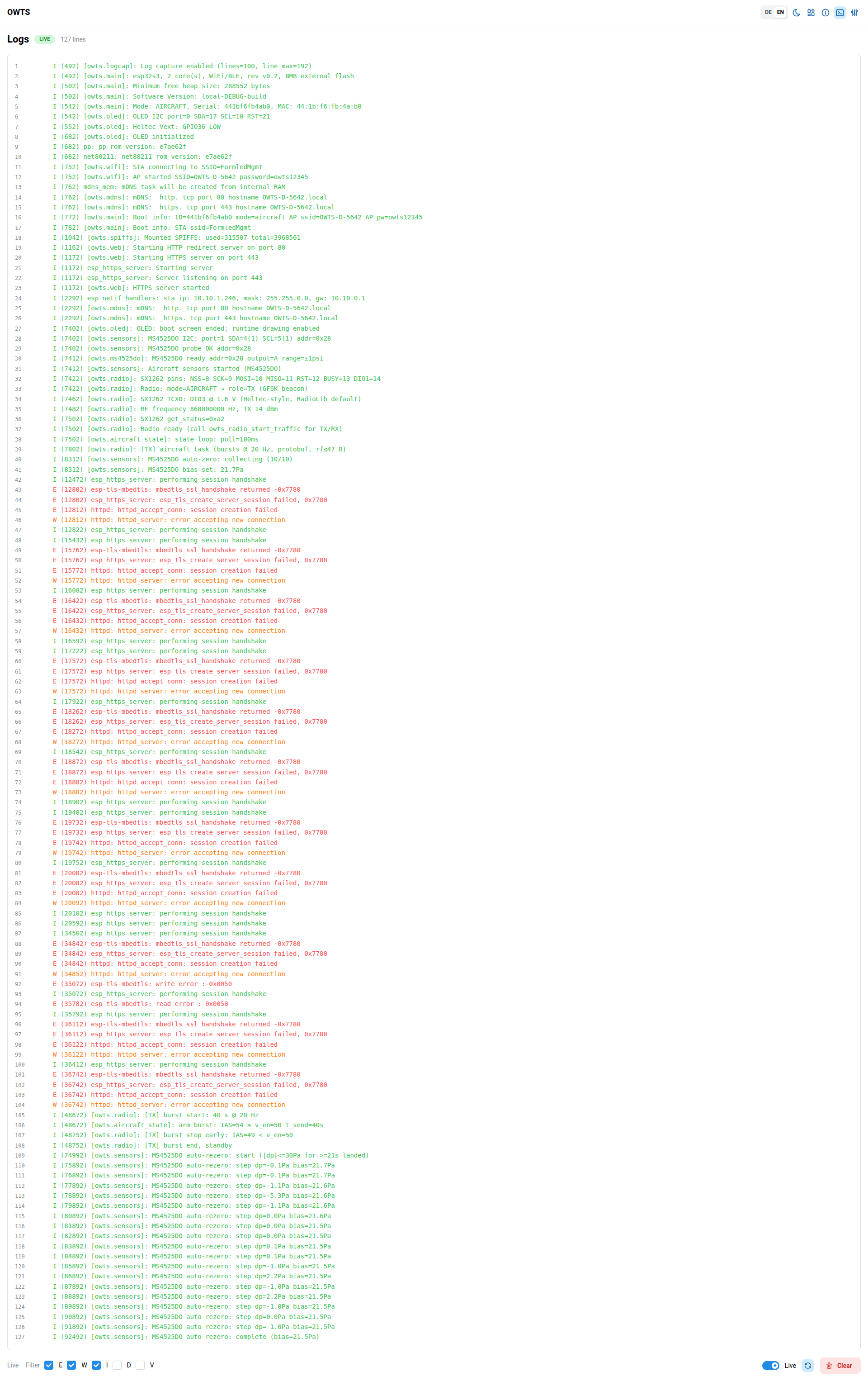
The Logs page shows recent log output captured by the device:
- The device keeps only a small in-memory ring buffer.
- The UI can cache more lines locally, so you can scroll back further than the device ring buffer.
- Use the level filter to show/hide
E(error),W(warning),I(info),D(debug), andV(verbose) lines. - If you scroll up, the view stops auto-following new lines; scroll back to the bottom to resume live tailing.