Winch mode (receiver)
In winch mode, the OWTS device receives the aircraft’s IAS telemetry and exposes it locally via:
- the on-device web UI, and
- the REST API (used by the UI and useful for troubleshooting/integration).
Proof of concept – not for operational use
OWTS is currently a proof of concept. It is not recommended for operational use at this stage. See the notes in the aircraft-mode documentation regarding radio compliance and operational constraints.
Getting started
Initial connection (SoftAP), default password, and URL/mDNS notes live in Setup. Shared UI pages (About/Config/Logs) are documented in Web UI.
Typical workflow at the winch
- Verify the receiver is set to winch mode.
- Confirm radio reception (telemetry should update while the aircraft transmitter is active).
- Use the UI to view the current IAS and the configured speed band (min/opt/max).
- If the device is secured, enter and validate the API password under Config → Security before attempting any configuration changes (reboot, WiFi changes, etc.).
Winch monitor (live view)
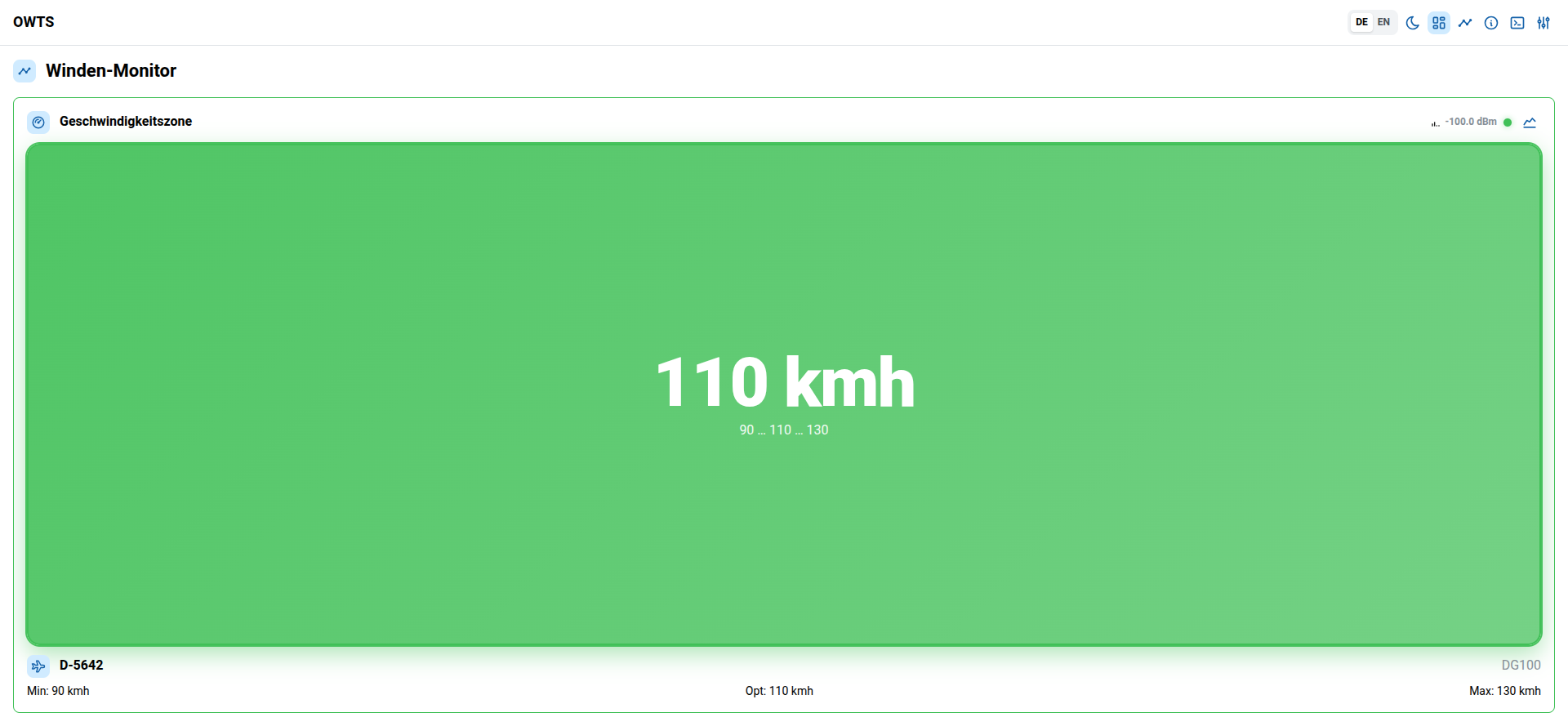
The Winch monitor is the default home screen in winch mode.
- Speed zone panel: large color-coded status:
- shows current IAS and the configured speed zone (min/opt/max)
- color indicates whether IAS is below/inside/above the configured band
- RX activity LED: small indicator next to the graph toggle
- blinks green briefly when new telemetry is decoded
- stays grey when polling succeeds but no new telemetry arrived
- RX signal strength: RSSI in dBm (shown only when telemetry is available)
- Aircraft identity: registration and type are shown below the panel when telemetry is available.
Winch monitor (with graph)
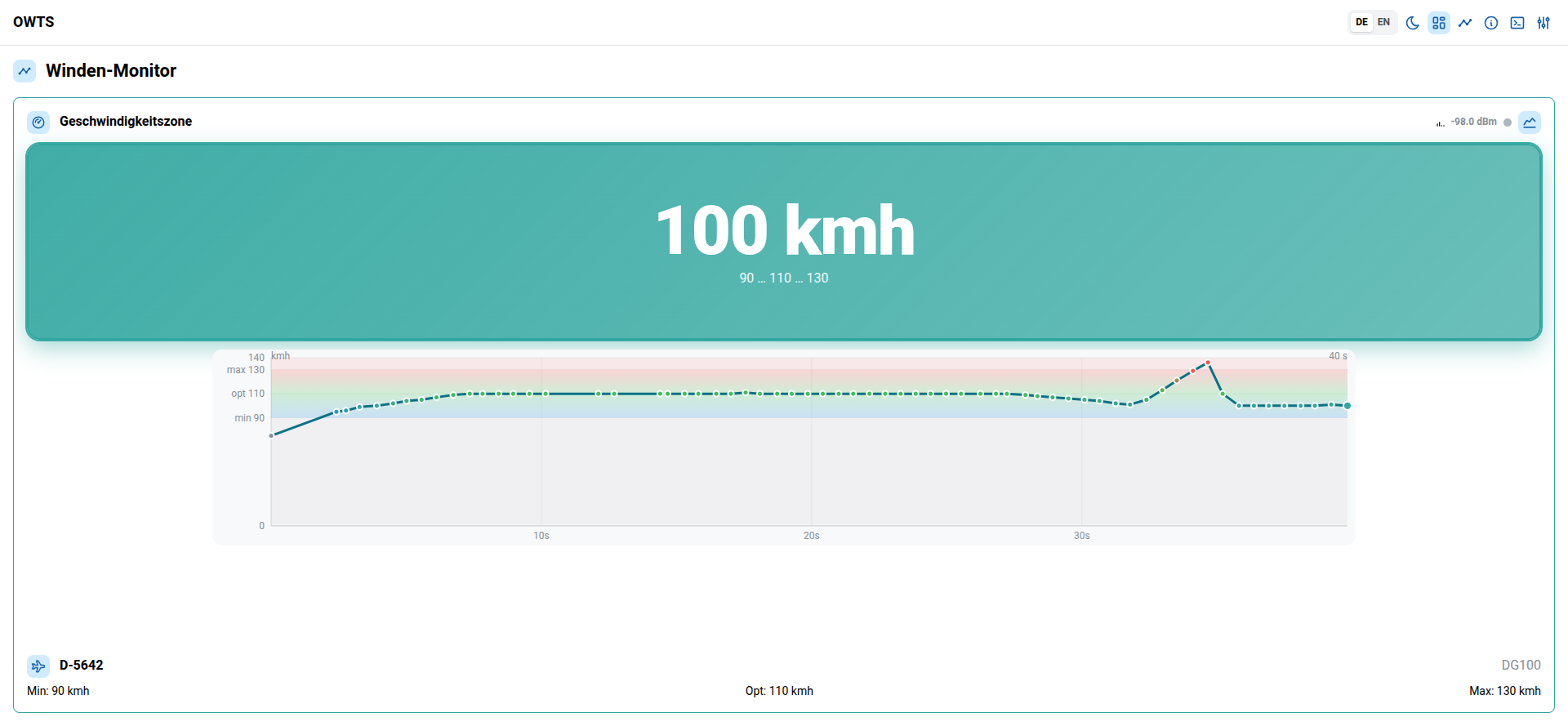
Use the graph toggle (📈) to show a live plot of IAS over time.
WS2812 LED strip (optional)
If your winch receiver is built and wired with a WS2812/WS2812B LED strip, it can visualize the current speed zone:
- Off: below \(v_{min}\) / no telemetry
- Blue → Green → Red: around \(v_{min}\) → \(v_{opt}\) → \(v_{max}\)
The strip settings are configured on the device in Config (winch mode):
- LED count
- Brightness (active speed segment)
- Dimmed bar segments — relative brightness for LEDs below current IAS (VU-style)
- Reverse direction
- Color order (e.g. GRB vs RGB)
Saving LED settings reboots the device.
Launch history (stored locally in the browser)
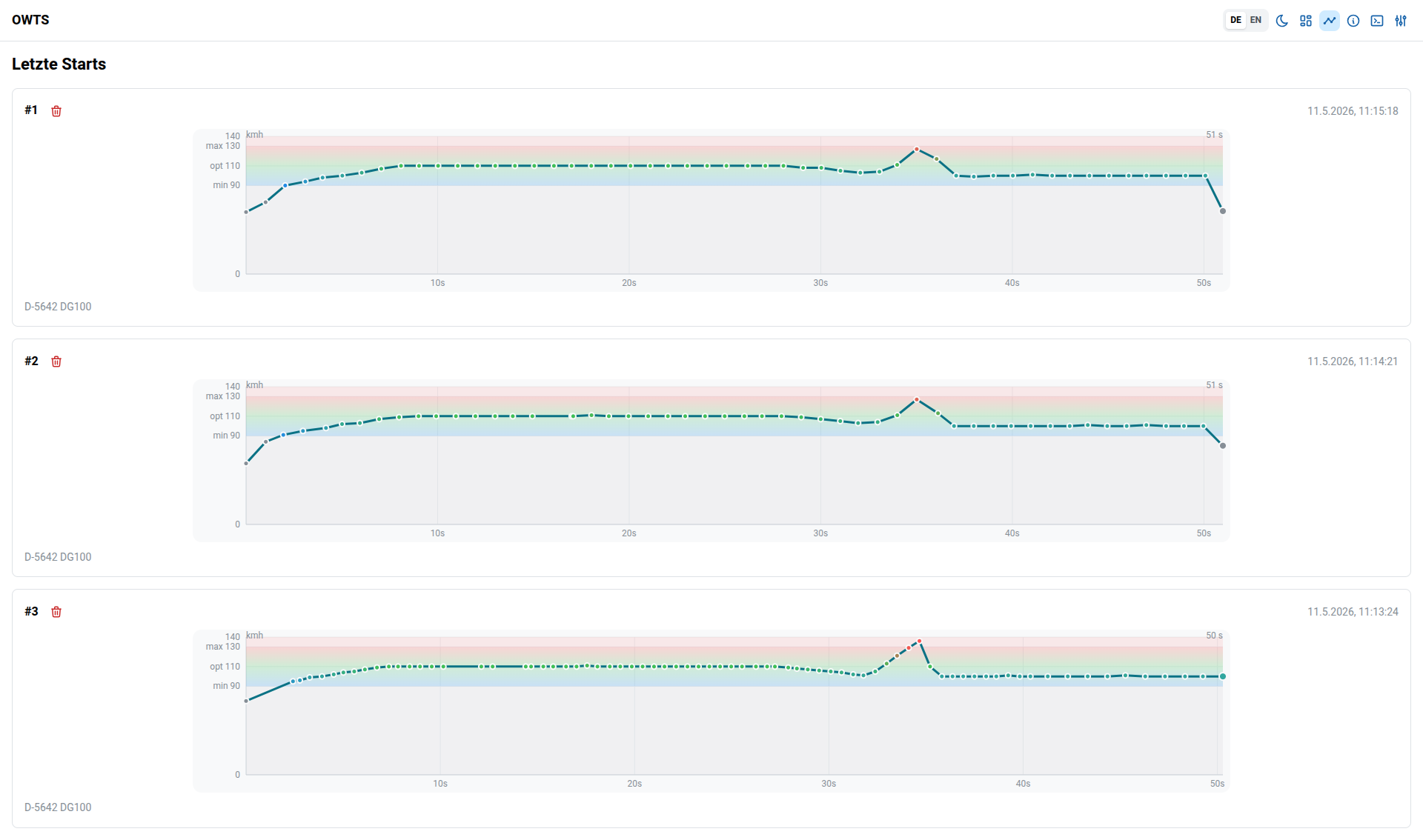
The Last launches page shows a small list of recent launches.
History is stored in the browser
Launch history is stored in your browser’s local storage (not on the device). It is tied to the specific phone/tablet you use for viewing the UI.
- Each entry shows a small IAS profile preview and a timestamp.
- Use the trash icon (🗑️) to delete a stored launch entry.
Troubleshooting (quick checks)
- No updates:
- Confirm the aircraft device is powered and in aircraft mode.
- Check that both devices use compatible radio settings (frequency/power as implemented).
- UI loads but values are empty:
- The receiver may not have decoded telemetry yet (or it has timed out).
- Open the Logs page in the web UI to see whether telemetry is being received and whether there are radio / decode errors.