Aircraft mode (transmitter)
In aircraft mode, the OWTS device measures the aircraft’s indicated airspeed (IAS) and transmits it to the winch receiver over the radio link.
Proof of concept – not for operational use
OWTS is currently a proof of concept. It is not recommended for operational use at this stage.
- Radio compliance and certification requirements depend on the country and intended use.
- Aircraft sensor installations (including pitot/static integration) may be regulated and require approvals depending on local rules and aircraft category.
Goals in aircraft mode
- Provide a stable, low-latency IAS signal to the winch station.
- Keep operation simple: one device in the aircraft, configured once, then used repeatedly.
Getting started
Initial connection (SoftAP), default password, and URL/mDNS notes live in Setup. Shared UI pages (About/Config/Logs) are documented in Web UI.
Configure aircraft profile
Use the UI to configure the aircraft device. The settings are persisted on the device.
Config → Radio (SX1262 builds): SRD profile, frequency/power, rolling duty readout, and optional lab duty override — see Web UI → Radio.
Aircraft settings page (editable)
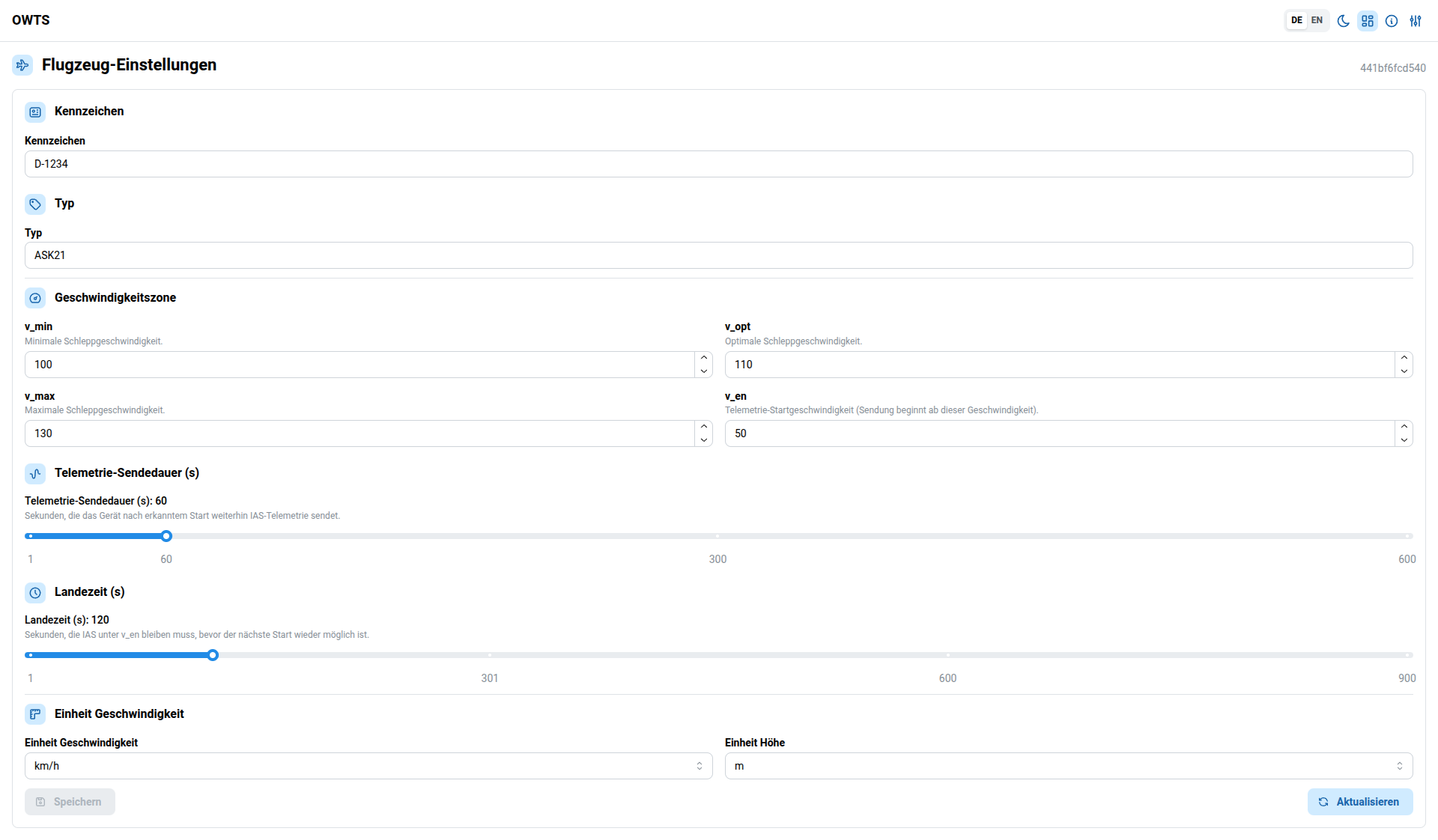
Identity
- Registration: aircraft registration (shown on the winch receiver and in history).
- Type: short aircraft type string (shown on the winch receiver and in history).
Change either field and press Save to persist it.
Registration changes may trigger a restart
In the current firmware/frontend behavior, changing identity fields can cause the device to reboot shortly after saving (the UI will reload).
Speed zone
The speed zone defines the target band the winch side will display:
- v_min: minimum winch launch speed (lower limit)
- v_opt: optimal winch launch speed (target)
- v_max: maximum winch launch speed (upper limit)
These values are stored as integers in the selected speed unit (see below).
Telemetry transmit policy
- v_en: telemetry start speed
The transmitter starts sending when IAS is at/above this speed. - Telemetry transmit time (s) (
t_send): how long the device keeps transmitting after a launch is detected. - Landing hold (s) (
landing_hold_s): IAS must stay belowv_enfor this long before a new launch can be armed (helps avoid repeated triggers).
Units
- Speed unit:
km/horkts - Height unit:
morft(used for display/metadata in current builds)
After changes, press Save.
Live IAS monitor
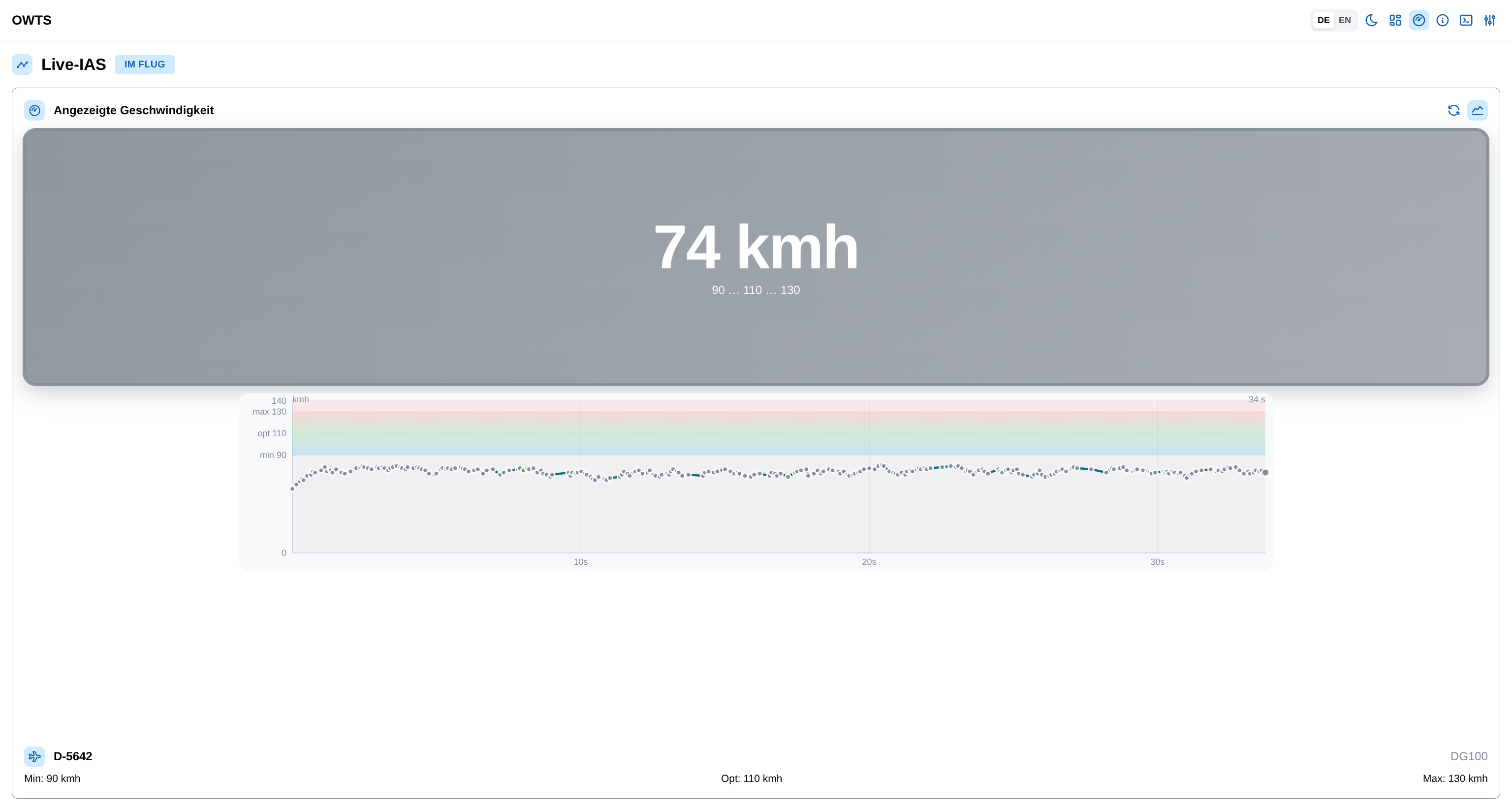
Open Live IAS from the gauge icon in the top navigation (or go to
/aircraft/live). This page is separate from the home aircraft settings
screen so the device is not polled over WiFi unless you are actively viewing the
monitor.
The live view mirrors the on-device OLED logic: color-coded IAS, flight/landing state, and an optional speed graph.
Flight state badge
A badge next to the title shows the current phase (from the same state machine as the OLED LANDED line):
| Badge | Meaning |
|---|---|
| In flight | Airborne; IAS at or above v_en, or still in the launch episode |
| Landing hold n / N s | After a transmit burst ended; IAS below v_en for n of N seconds (landing_hold_s) before the next launch can be armed |
| Landed | Confirmed landed (or on boot before the first takeoff) |
When landed and IAS is below v_en, the large panel shows LANDED (like
the OLED) instead of a speed number.
Speed graph
- The graph is shown by default (unlike the winch monitor, where it starts hidden).
- Use the graph toggle (📈) to hide it.
- Use the reset button (↻) to clear the trace manually.
- Samples are recorded only while in flight or in landing hold — not while landed, so a long ground period does not fill the chart with zeros before the next launch.
Polling runs at about 2 Hz only while this page is open.
What the winch sees
In aircraft mode, the transmitter typically provides:
- Current IAS (in the configured unit)
- Aircraft identification (registration/type)
- Basic status information (if supported by the current firmware build)